
Looking for the knowledge base for classic OrderTrac? You can find that here.
Creating and Receiving POS Purchase Orders
by Bradly Adams
POS purchase orders let you order POS items from a vendor and receive them when they arrive.
Create a POS Purchase Order
1. Go to Point-of-Sale > POS Purchase Orders and click New POS Purchase Order.
2. Select the Vendor, Location, and Ship to location.
3. Click Add Items. Enter the Order Qty beside each item you want to order, then click Add.
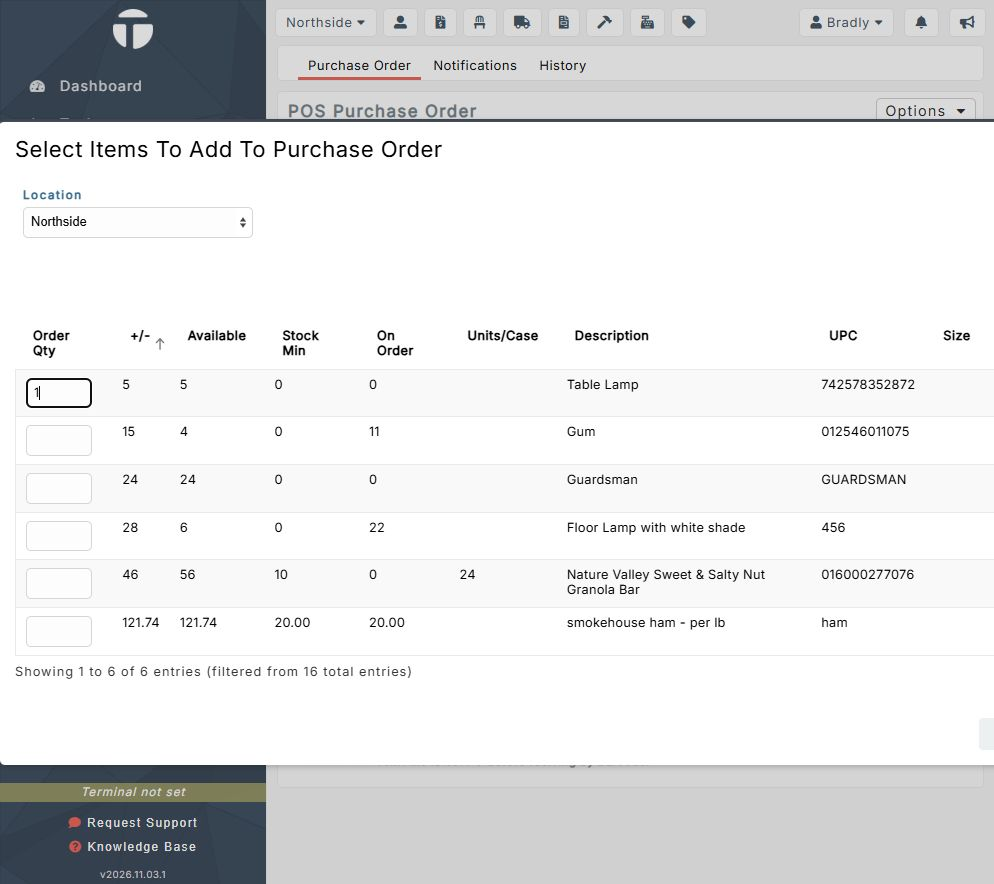
Review the items. Enter an Estimated Pickup Date and Notes if needed, then click Save.
Use Preview, Print, Email, or Fax when you are ready to review or send the PO.
Receive Items
Open the PO and click the three-dot menu at the end of the item row.
Select Receive to receive the remaining quantity. Select Partially Receive when only part of the order arrives. Enter the quantity received and click Receive.

Use the Received and Qty Rec. columns to review receiving information.
Receive by Barcode
Print the latest PO, then scan the barcode from the PO into Receive by Barcode and click Receive. This receives the entire remaining quantity for that item.
Accounting
Emails
Migration
Billing
General
OrderTrac Inventory
OrderTrac makes it easy to create sales orders, generate purchase orders, and track order status of items all give you time back.
